Are you experiencing issues with your Xhorse Multi-Prog Programmer getting stuck in Recovery Mode? Does the PC software show the Device System version as “— —” even after a firmware update reaches 100%?
You’re not alone. We recently helped a customer resolve this exact issue, and the solution was simpler than expected.
The Problem: Multi-Prog Stuck in Recovery Mode
One customer contacted our technical support team because his Xhorse Multi-Prog was unable to work properly. The device could not be recognized by the PC software, and the Device System version was not displayed correctly.
The customer reported the following symptoms:
Multi-Prog remained stuck in Recovery Mode.
The Device System version appeared as “— —” in the PC software.
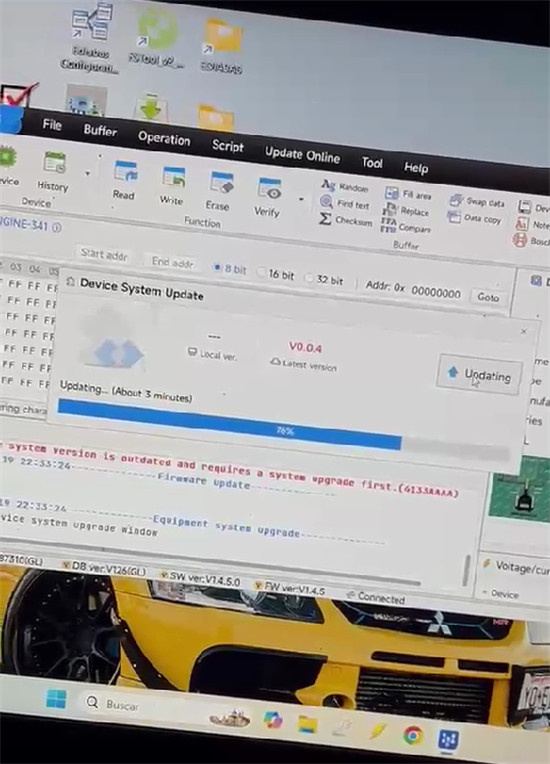
The software downloaded firmware V0.0.4 and showed “Device system update successful” after reaching 100%.
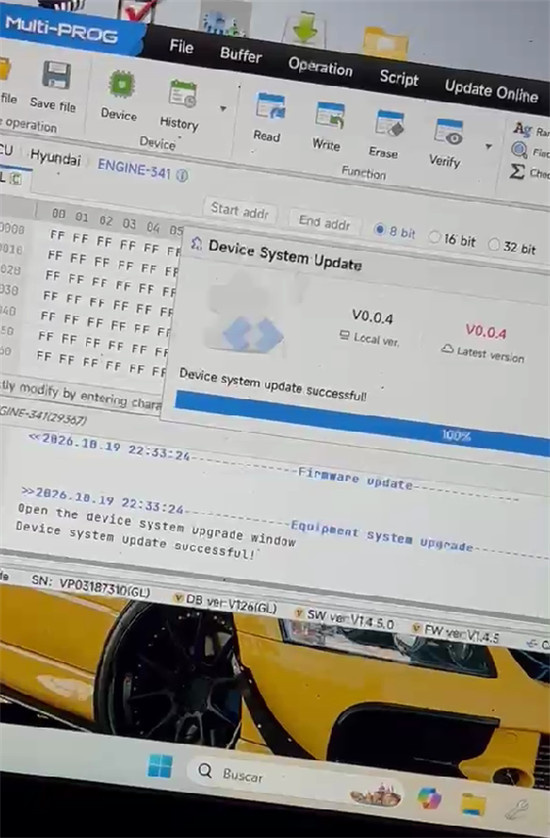
However, the system version did not change, and the device remained in Recovery Mode.
Error code 4133AAAA continued to appear, preventing normal reading and writing operations.
The customer had tried updating the device multiple times, but the problem persisted.
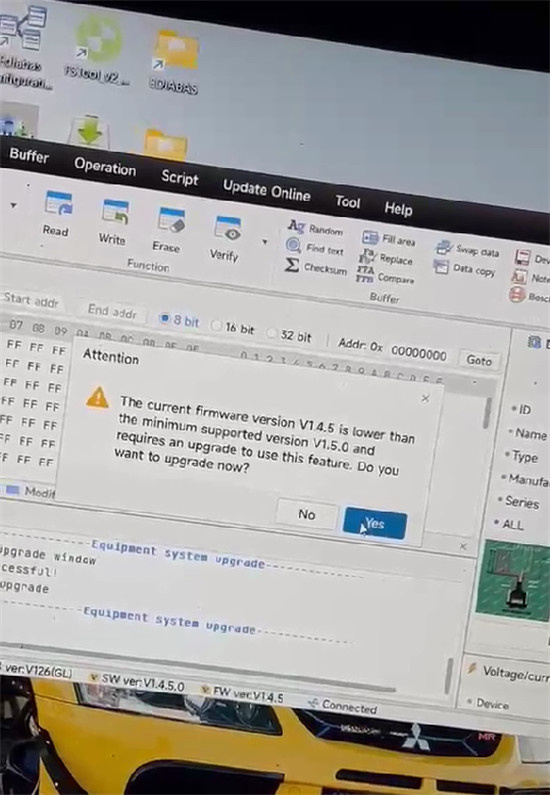
The Solution: Enter Firmware Upgrade Mode Manually
After reviewing the issue, our technical support engineer recommended manually entering Firmware Upgrade Mode before performing the update.
Follow these steps:
Step 1: Connect Multi-Prog to your computer.
Connect your Multi-Prog Programmer to your PC using the appropriate USB cable.
Step 2: Press and hold the RST button.
Before powering on the device, press and hold the RST button.
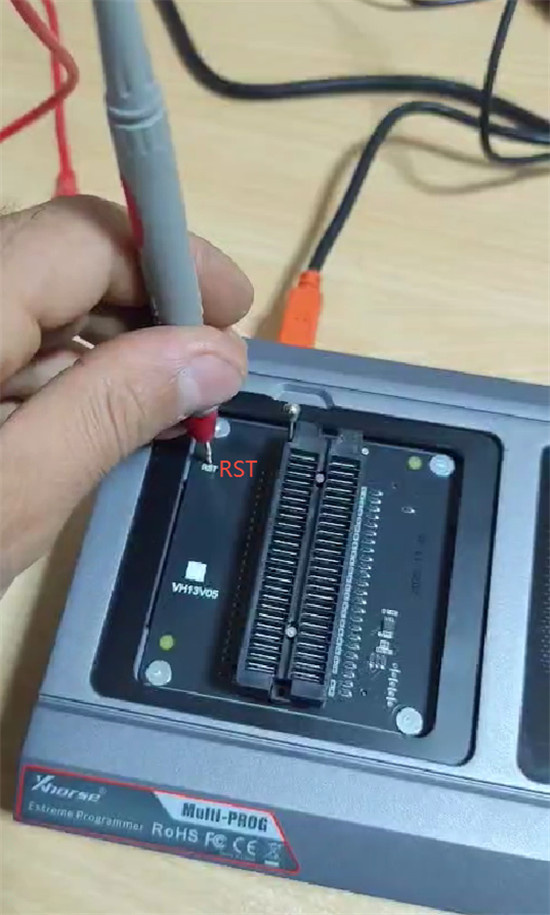
Step 3: Power on the device.
While continuing to hold the RST button, power on the Multi-Prog.
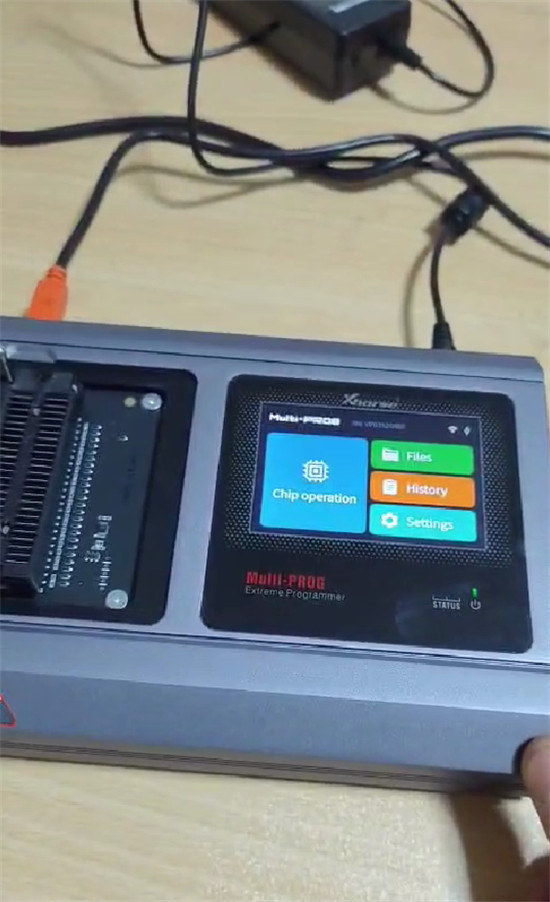
Step 4: Keep holding the RST button for 10 seconds.
Continue holding the button for approximately 10 seconds after powering on the device to enter Firmware Upgrade Mode.
Step 5: Perform the firmware upgrade again.
Once the device has entered Firmware Upgrade Mode, follow the software instructions to perform the firmware upgrade.
After completing the process, check whether the Device System version is displayed correctly and whether the device has returned to normal operation.
Problem Solved!
By following the engineer’s instructions, the customer successfully resolved the Recovery Mode issue.
This case demonstrates why entering Firmware Upgrade Mode correctly can be an important troubleshooting step when a Multi-Prog update appears to complete but the device remains stuck in Recovery Mode.
Still Having Problems with Your Xhorse Multi-Prog?
If your Multi-Prog still displays “— —” for the Device System version or continues to show error code 4133AAAA after following these steps, please contact our technical support team for further assistance.
At XhorseTool, we are committed to helping locksmiths and automotive professionals get the most out of their Xhorse tools.
Need help with your Multi-Prog? Contact the XhorseTool support team for assistance.
- Email: Sales@xhorseTool.com
- Skype: VVDI2shop.com
- Whatsapp/Tel:+86 15387077565


