This guide demonstrates the process of generating a dealer key for BMW G Chassis BDC3 vehicles using Xhorse Key Tool Plus in two methods.
Follow each step carefully to ensure successful key programming.
Step 1: Prepare Your Tools
- VVDI Key Tool Plus Pad
- Xhorse BMW G series BDC3 IMMO license activation
- MCU Cable & DB15 Cable
- Soldering iron and solder
- Original key & Original Factory Key (or VVDI BMW dedicated key)
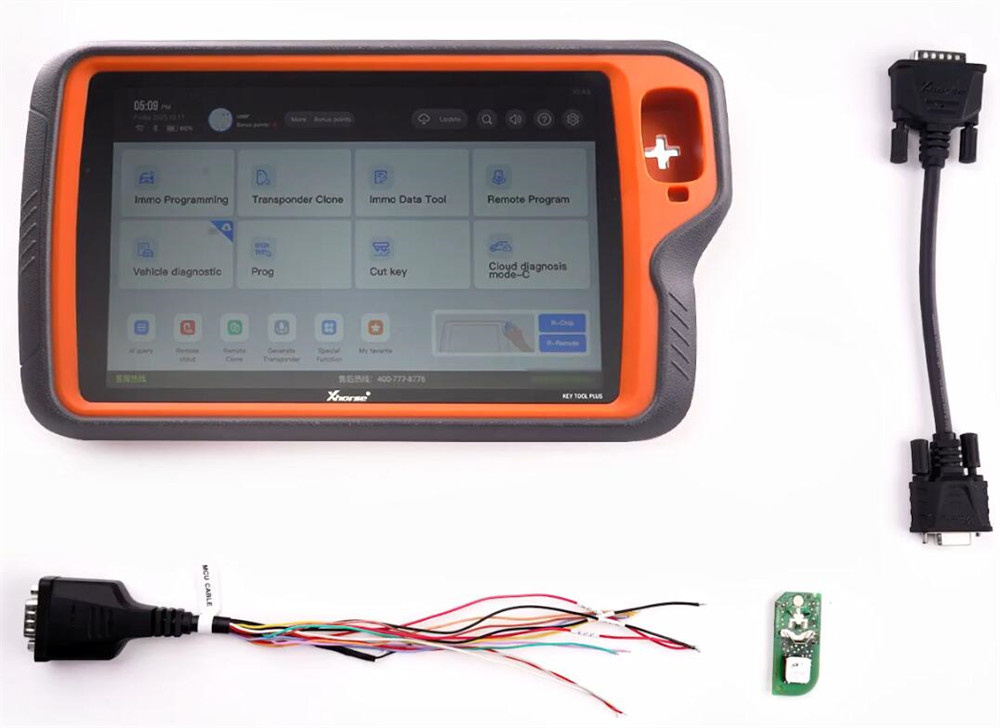
Step 2: Read Vehicle Information
Launch Key Tool Plus and select:
Immo Programming-> All brands-> BMW-> Select from system-> G/U Chassis BDC3/BCP IMMO System-> Start programming
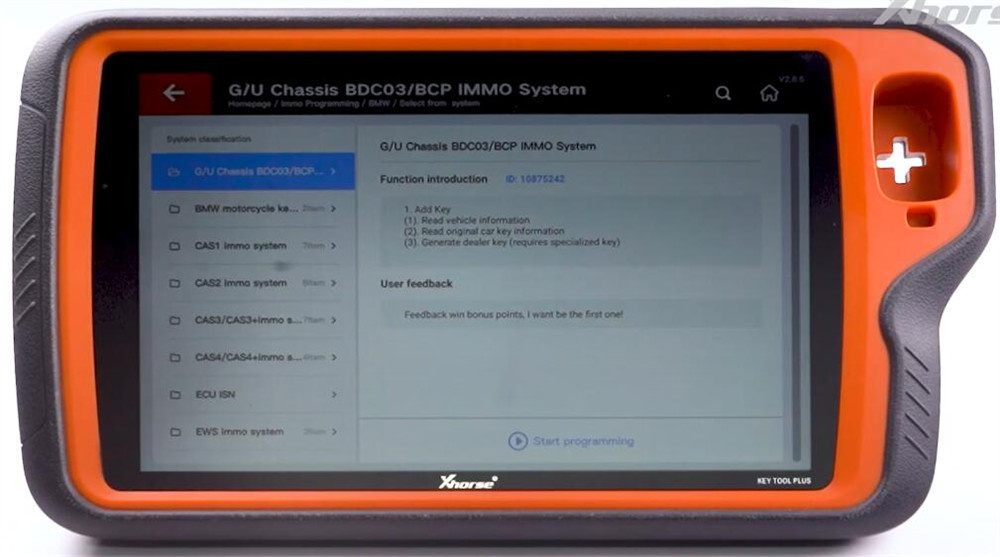
Select Read vehicle information
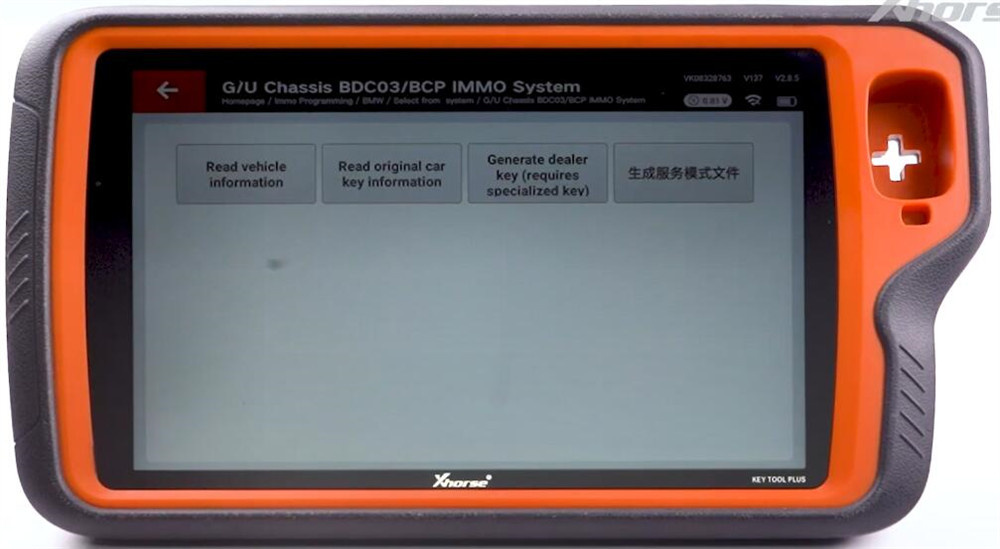
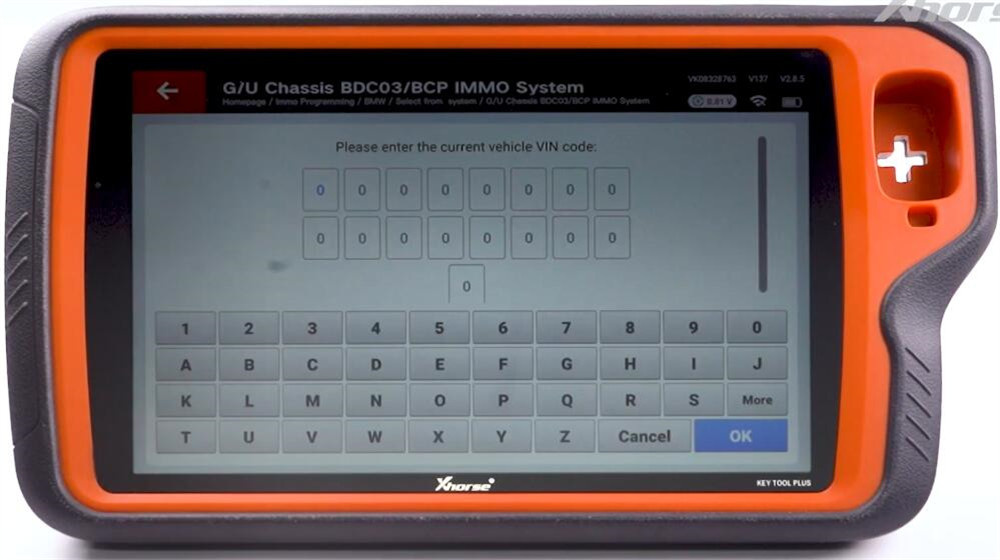
Choose “Manually enter the vehicle identification” or “OBD reads vehicle information”
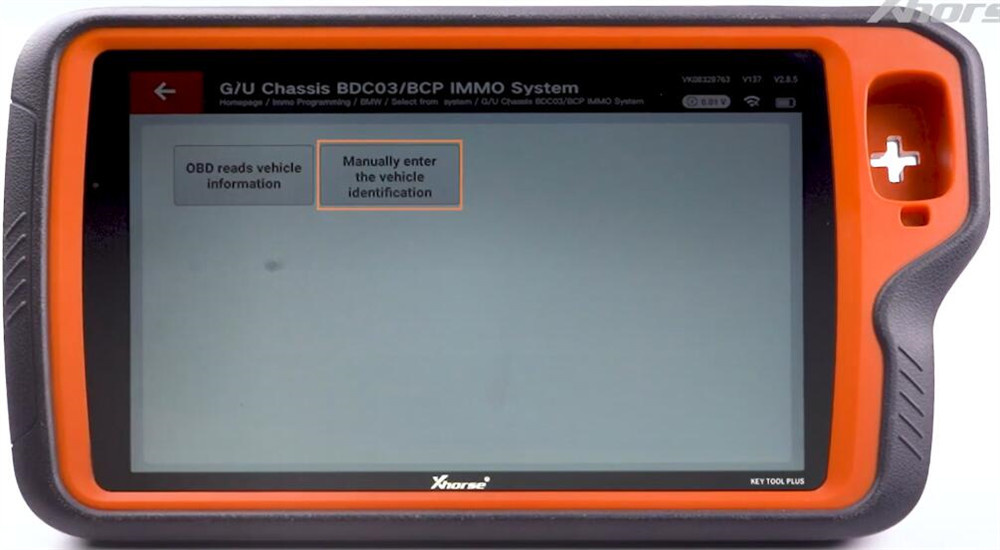
Here we select manually input the VIN
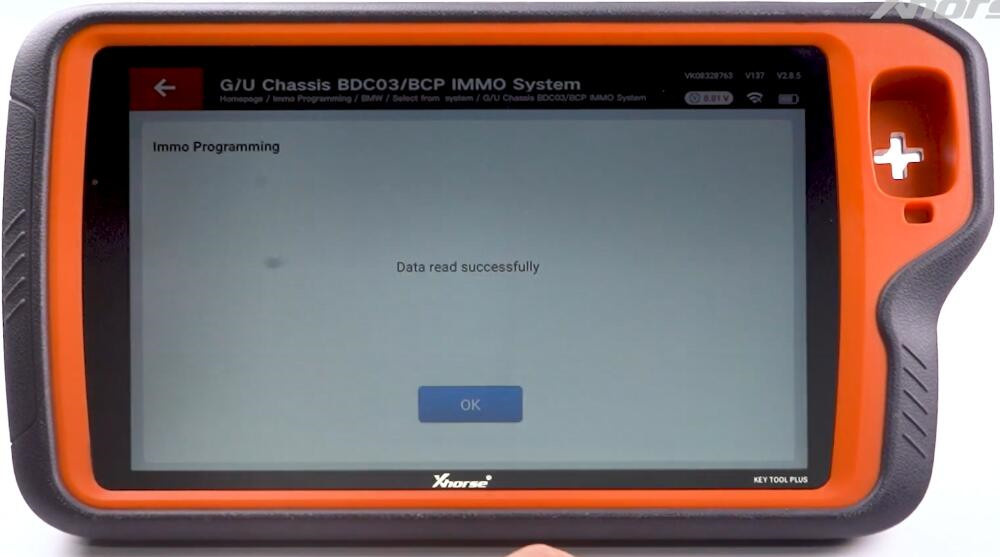
Once data is read successfully, proceed to the next step.
Step 3: Read the Original Car Key
Select “Read original car key information”
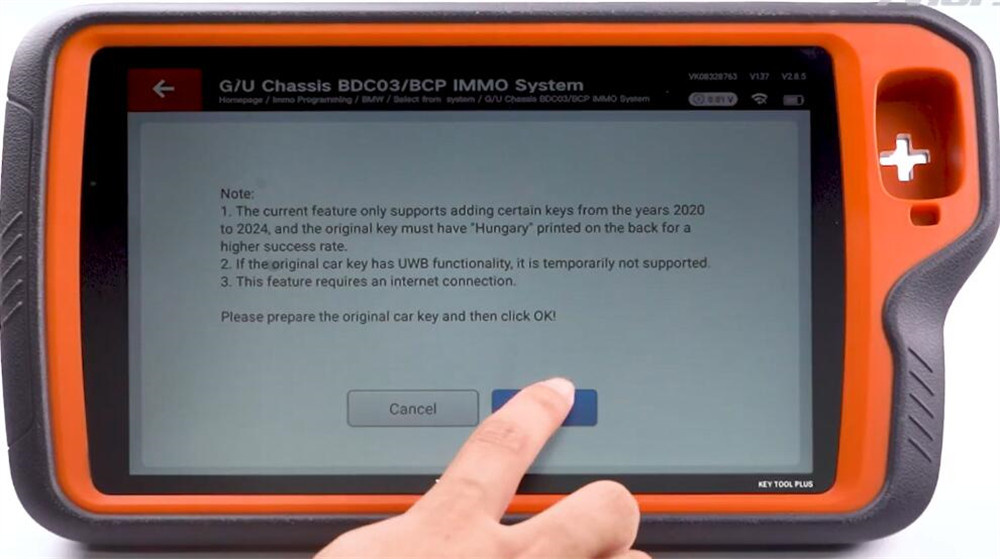
Pay attention the prompts and click “OK”
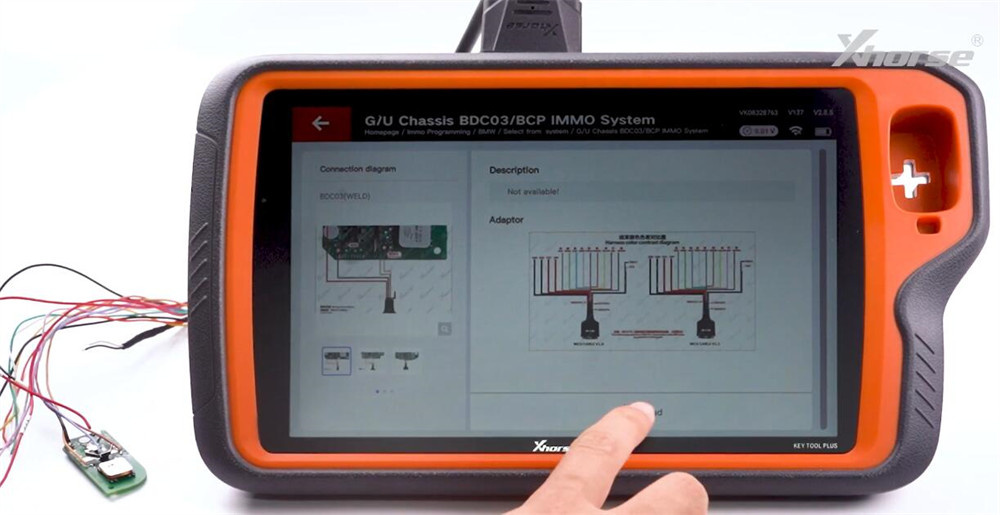
Refer to the connection diagram for correct pin positions.
(Note: Cable colors may vary between old and new versions.)
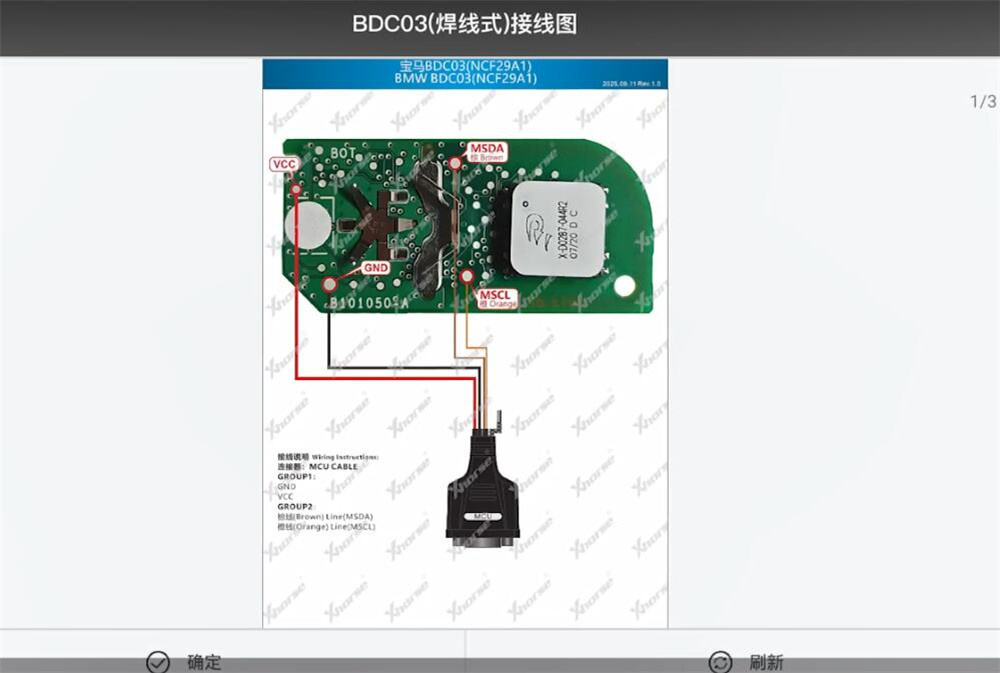
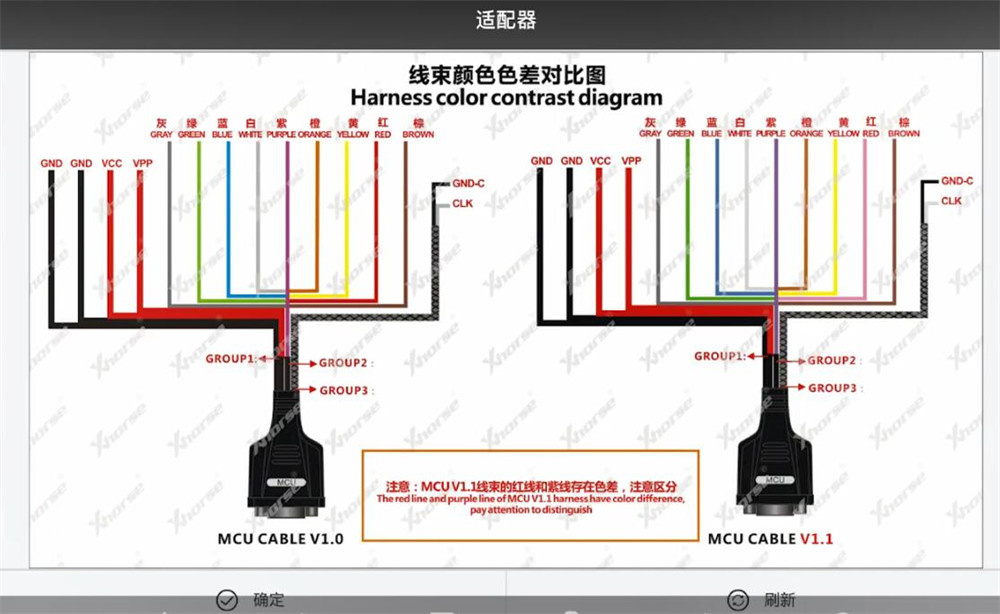
Solder the four wires from the MCU cable to the corresponding points on the original key.


Connect the soldered cable to VVDI Key Tool Plus, then click Read.
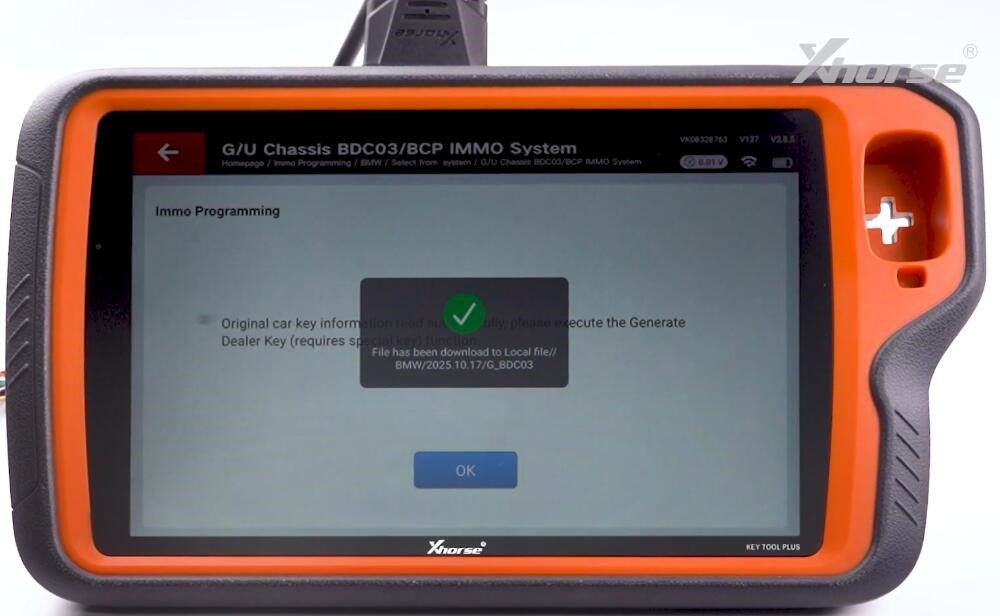
Save the original key data file when prompted.
Upload the data to generate the Service File, then save it.
Step 4: Generate the Dealer Key
Method A: Using an Original Factory Key
Carefully desolder the MCU cable from the original key.
(Tip: Gently melt the solder with a soldering iron. Do not pull the wires.)
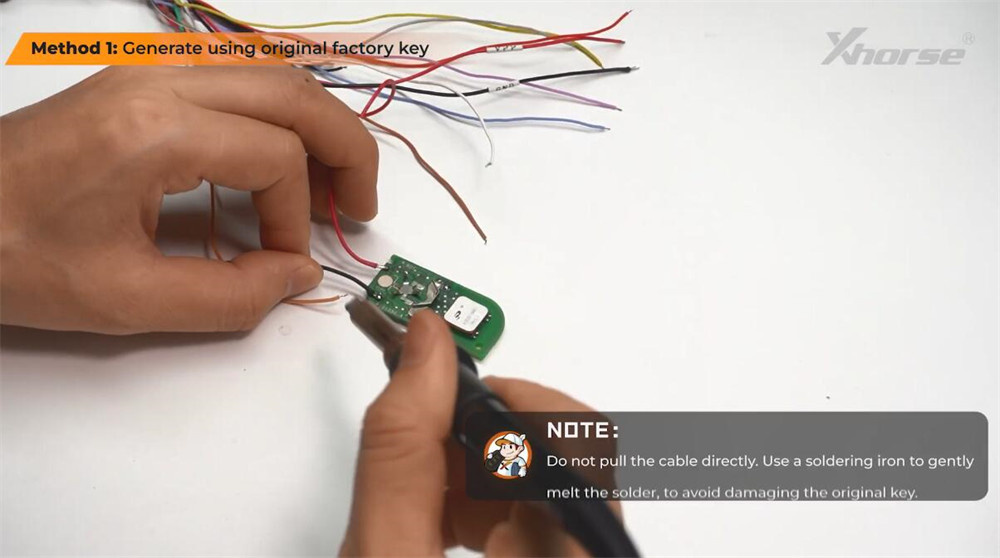
Solder the MCU cable to the Original Factory Key intended for key generation.
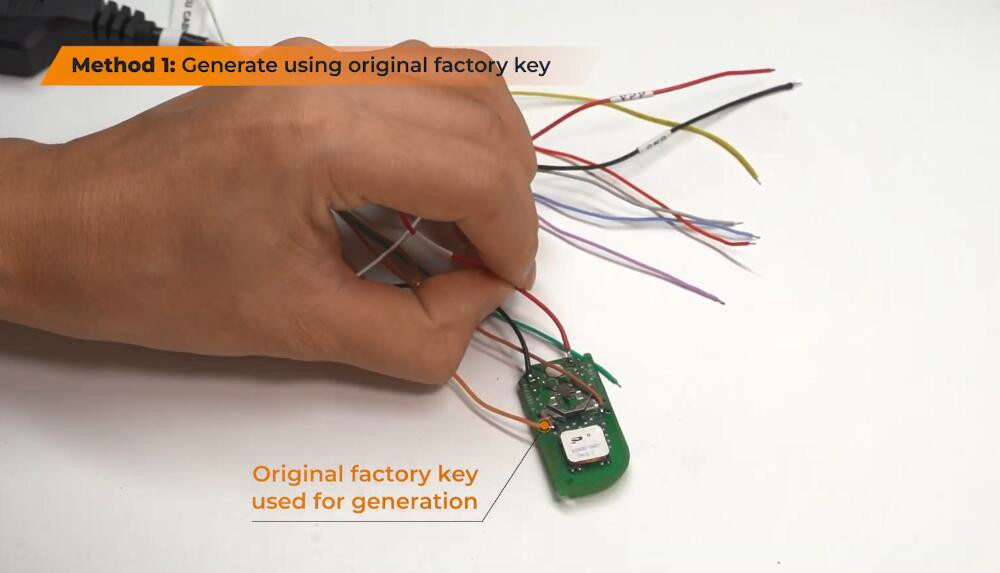
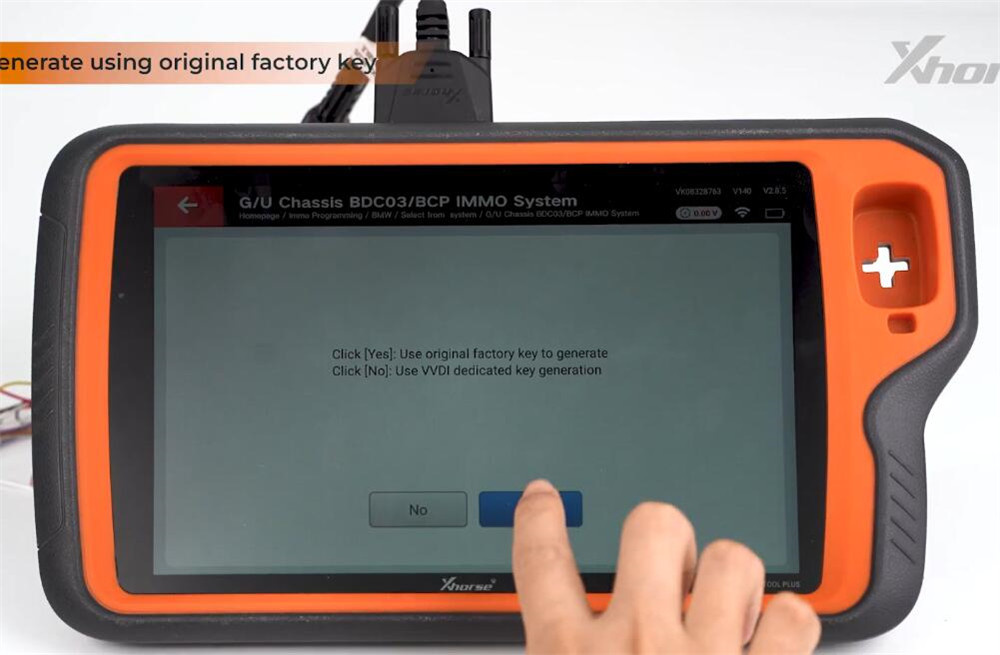
Return to Key Tool Plus, select “Yes – Generate using Original Factory Key.”
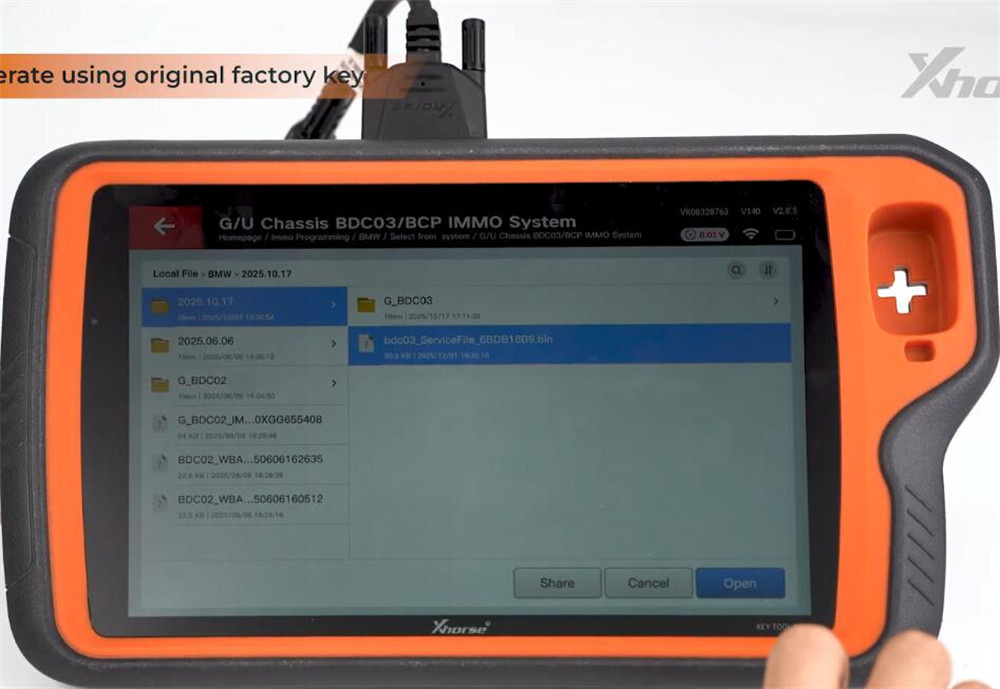
Load the previously saved Service File.
Double-check wiring, then click Write.
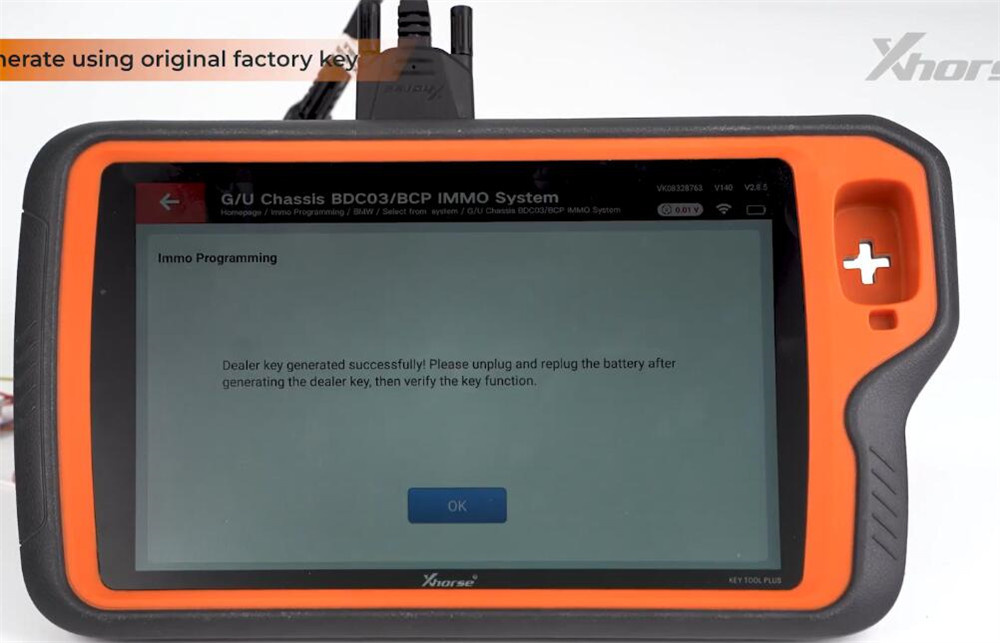
Once completed, the dealer key is ready.
Method B: Using a VVDI BMW Dedicated Key
First, complete remote generation:
Enter the remote program menu.
Select the correct BMW model.
Follow the on-screen instructions using a VVDI BMW dedicated key. 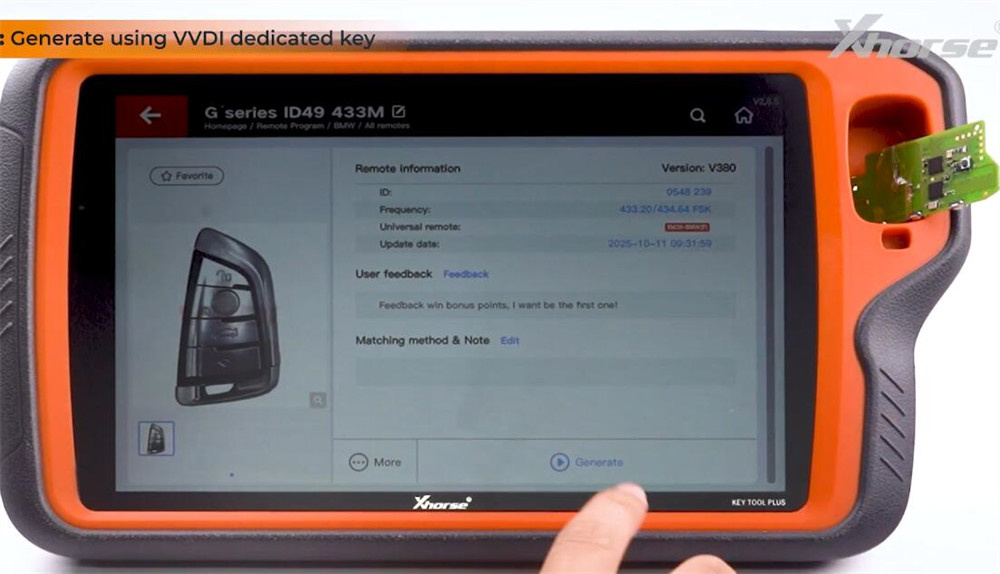
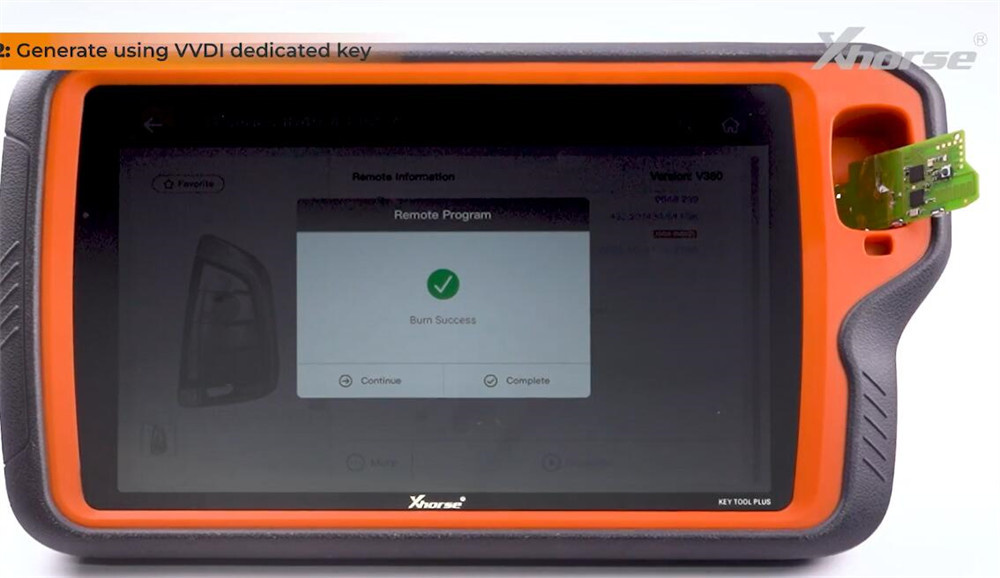
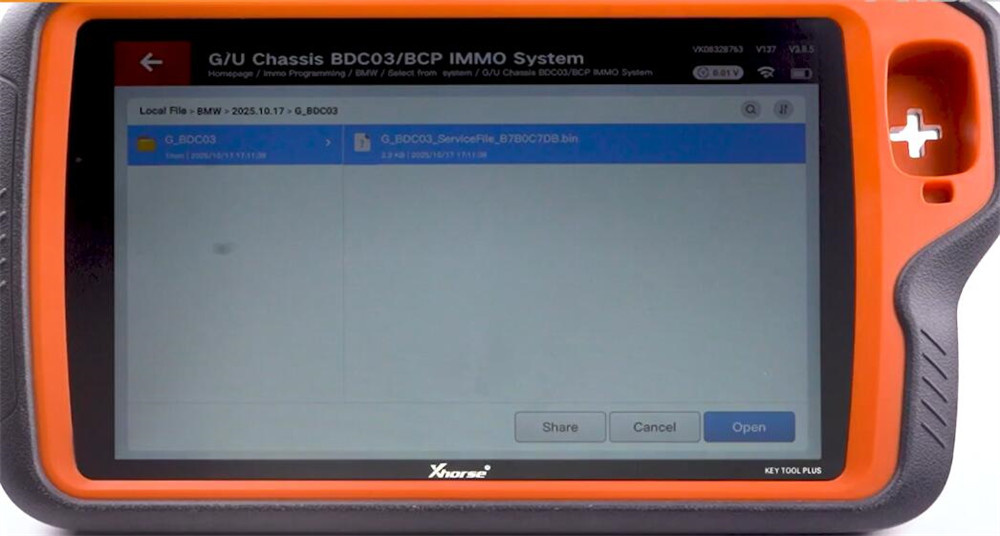
Return to “Generate Dealer Key” and select “No – Generate using VVDI Dedicated Key.”
Load the saved Service File.
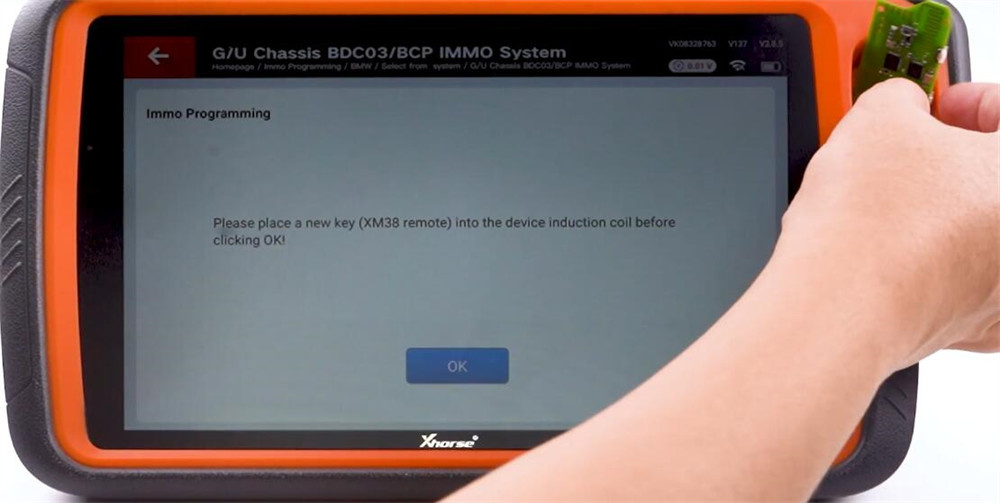
Place the VVDI key on the device coil and start the process.
Wait for the “Key Generation Successful” prompt.
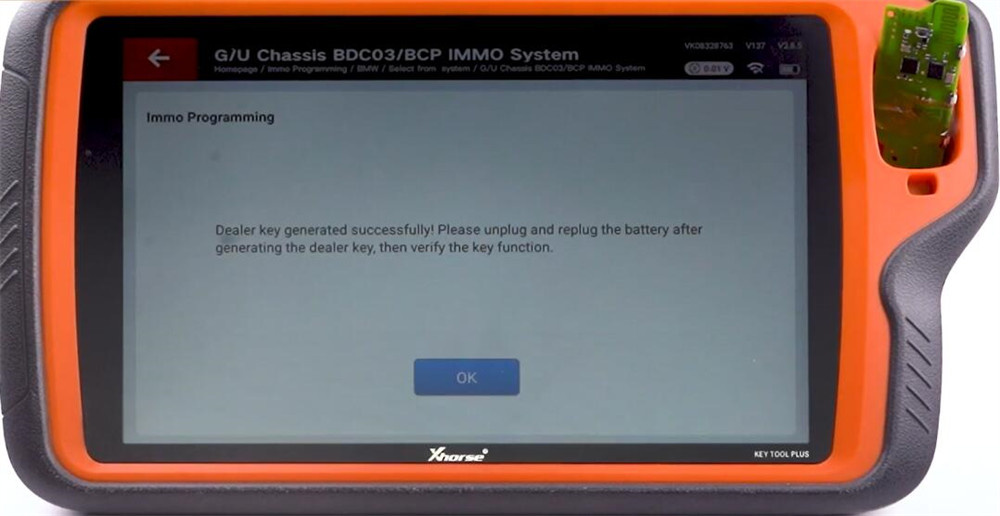
Step 5: Final Verification
Disconnect and reconnect the vehicle battery.
Test all key functions (lock, unlock, start) to ensure proper operation.
Alright! That’s the whole process to add a key to BMW G series BDC3 module by Xhorse VVDI Key Tool Plus Pad.


